Product Mode
Understand the difference between Full Mode and Download Mode, and which work each one fits.
Introduction
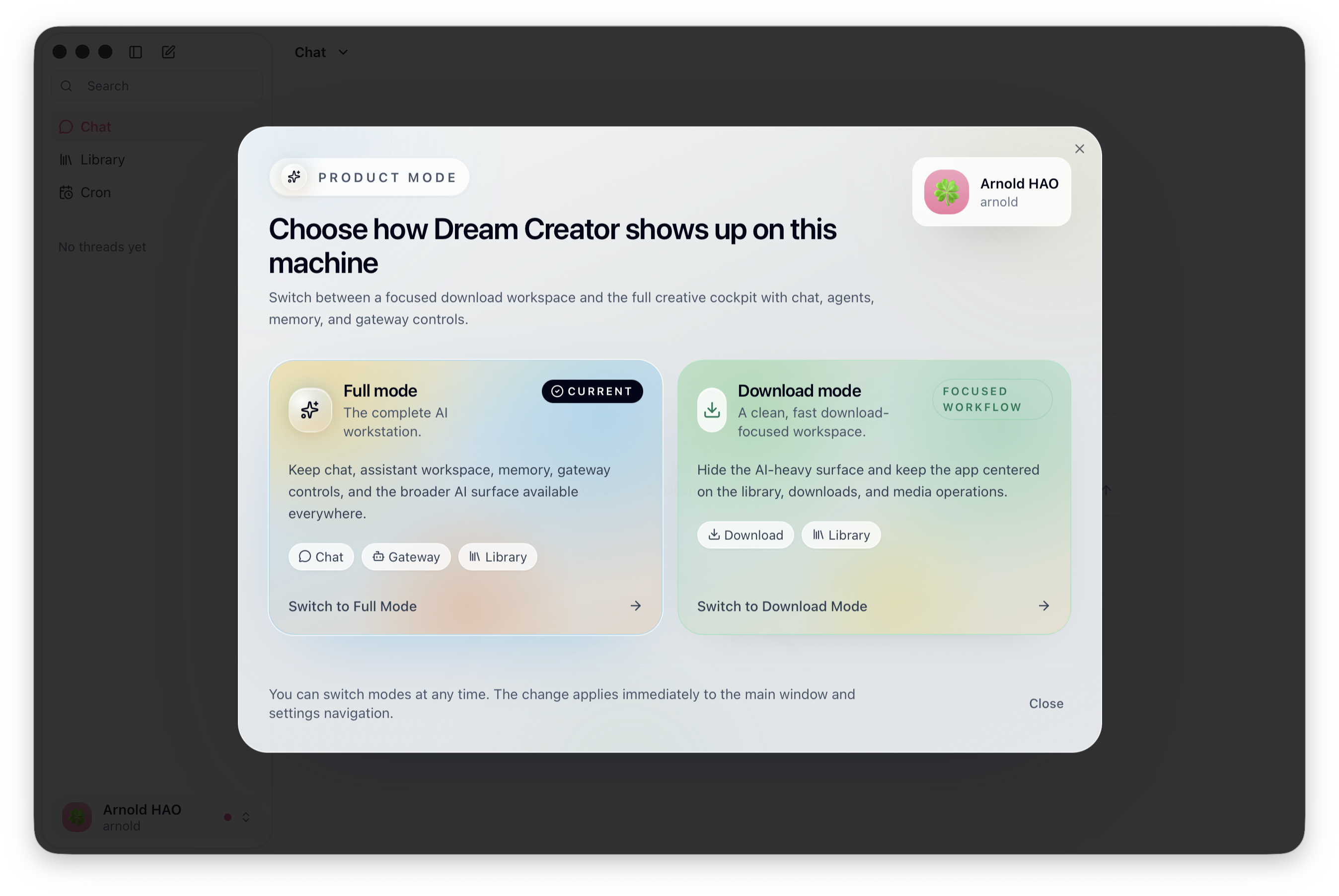
DreamCreator can switch between different product modes on the same device. When the mode changes, the main navigation, the settings navigation, and the required external tools change with it. You do not need two separate apps. You only change how the current app works.
The selected mode determines whether the current capability set stays mainly inside the desktop Resource Library, or can continue through chat, Telegram, and scheduled tasks as well.
Full Mode
Full Mode is DreamCreator’s complete mode. It enables chat, the Resource Library, Scheduled Tasks, and related AI configuration.
- It keeps main entry points such as
Chat,Resource Library, andScheduled Tasks. - It keeps assistant settings, memory, gateway controls, skills, and the broader AI settings surface.
- It allows library jobs and other tools to keep running through
Chat,Scheduled Tasks, andTelegram. - It is used for research, assistant execution, automation, mobile access, and multi-assistant workflows.
If the current workflow requires download, subtitles, research, execution, and automation together, use Full Mode.
Download Mode
Download Mode keeps the Resource Library, download, and media-processing related functions.
- It hides part of the AI-oriented navigation.
- It keeps the
Resource Librarycapabilities, including download, import, subtitle handling, transcoding, and export. - It keeps the desktop media-processing workflow for users who mainly work around the library directly.
- It currently does not require
CLAWHUB, and can be used for local media processing workflows.
If the current workflow focuses on download, subtitle handling, and video output, use Download Mode.
Selection
- If you need
Chat,Scheduled Tasks,Mobile Channels,Skills, andMemory, or want to keep starting library jobs through conversation and Telegram, chooseFull Mode. - If the current workflow mainly uses
Video Download,Subtitle Proofreading & Translation, andVideo Transcoding & Subtitle Burn-In, useDownload Mode. - If you do not need assistant features yet, you can start with
Download Modeand switch back toFull Modelater.
Switching
Later, you can switch modes at any time from the user info area in the lower-left corner under Product Mode.
- After switching, the main window and settings navigation update immediately.
- If
Full Modedependencies are still incomplete, DreamCreator will continue to remind you to finish setup. - Switching product mode does not delete existing libraries, tasks, or files. It only changes how the app is currently presented and used.