
Video Download
Use YTDLP-powered download flows to bring online video into the local library for further work.
Introduction
If you keep downloading public media, channel content, reference clips, BGM sources, or authenticated sources, the results can be stored directly in the local library for later management and processing.
Download jobs can be created from the Resource Library interface, or started by the assistant in chat, Telegram, and scheduled tasks, then tracked together in the library task list.
Prerequisites
- If onboarding is not complete yet, first finish the
Welcomesetup described in Install, First Launch & Updates, including external tools, proxy, and related initialization. - If the source requires authentication, first complete the sign-in setup described in
Configurationbefore parsing and download.
If these items are not ready, jobs usually stop during Parse or connectivity checks.
Features
Entry Points
Video download currently has two common entry paths:
Resource Library interface: suitable when you want to work directly with links, formats, subtitles, and transcode options.Chat, Telegram, and scheduled tasks: suitable when you want to hand the download request to the assistant and let the Resource Library execute and track it.
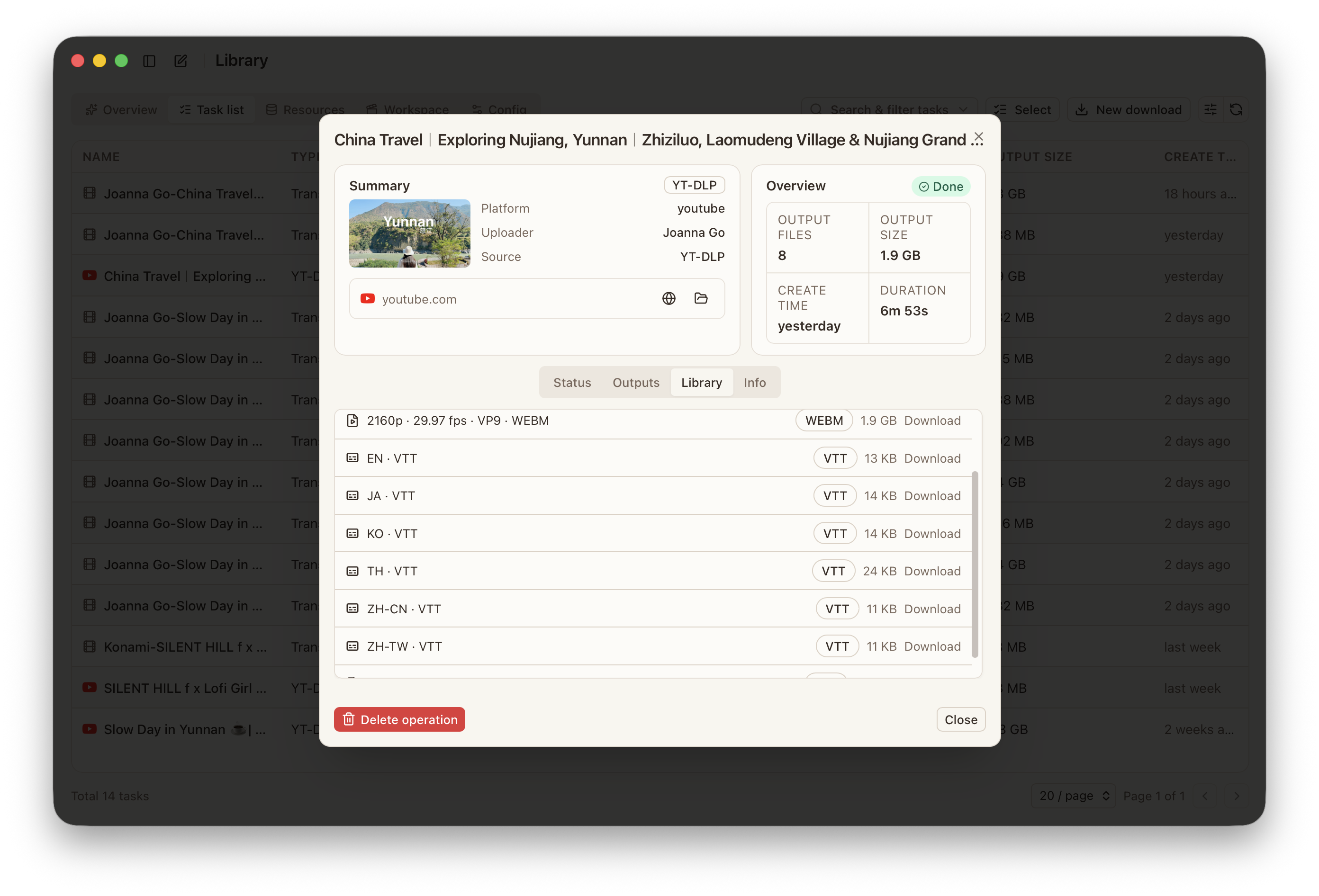
Whichever path you use, the created download job goes into the library task list, and its state, outputs, and errors are checked in the same place.
Download Modes
Quick Download: use this when you want to start immediately. You can chooseBest QualityorAudio Only, then continue with subtitle and transcode settings. For cases like downloading the highest available quality for the current video, or turning a video directly intoBGM,Quick Downloadis usually enough.Custom Download: use this when you need exact control over formats, subtitle tracks, or other output details. InCustom Download, you first clickParseto request video information, then choose the exact format and subtitle from the returned result. This adds an extra step and usually takes longer thanQuick Download.
In chat, Telegram, and scheduled tasks, the assistant prepares, parses, and creates the related download job according to your request.
If you need exact control over format, subtitle track, connector cookies, or transcode options, state those requirements clearly in the request.
Download Job
- Go to the
Resource Library, create a new download job, and paste the video URL. - If the current source supports connector cookies, turn on
Use connector cookies for parsing and downloadwhen needed. - If you want to start immediately, use
Quick Download, configureQuality,Subtitle, andTranscode, then clickStart. WhenQualityis set toBest Quality, DreamCreator downloads the highest quality supported by the current video and the current account permissions. - If you need exact control over format, subtitle, or other output details, switch to
Custom Download, clickParsefirst, then choose the exact items from the returned result before clickingStart. - After the job starts, return to
Tasksto follow parsing, queueing, download, and output state. - After the download finishes, continue directly from the task detail, the output files, or the workspace.
Subtitle Download
Subtitle handling is different in Quick Download and Custom Download:
Quick Download: the subtitle switch is on by default. When it stays on, DreamCreator requests subtitles together with the video or audio download. If the source also provides automatic subtitles, those are included in the request as well. Whether subtitles are actually returned still depends on what the site provides.Custom Download: you first clickParse. After parsing, the subtitle dropdown lists the subtitle tracks returned by the source. Each item shows the subtitle name or language, file format, and whether it is anAuto Subtitle. If you do not need subtitles, keep it onNo subtitles.
In the current Custom Download flow, you choose one subtitle track at a time. If you need tighter control over subtitle source, language, and follow-up processing, Custom Download is the better fit.
Thumbnails
Download jobs try to save thumbnails by default. There is no separate switch to enable this.
- If the current source provides a thumbnail, it is saved into the Resource Library together with the download result.
- If the current source does not provide a thumbnail, no extra thumbnail file is created.
- The thumbnail stays in the same resource record as the video, audio, and subtitle outputs, so it can be managed together later.
Custom Download Defaults
After you click Parse in Custom Download, DreamCreator preselects a format to reduce manual work.
- If the returned result includes video formats, DreamCreator prefers the higher-resolution format first. If two formats have the same resolution, it prefers the larger file.
- If the returned result only includes audio formats, DreamCreator prefers the larger audio file.
You can still switch to another format, subtitle, or transcode option manually before starting the job.
Follow-Up Processing
After download, the next step is usually one of these:
- Continue with Subtitle Proofreading & Translation.
- Continue with Video Transcoding & Subtitle Burn-In.
- Continue with Conversation, Research & Idea Organization.
Configuration
Assistant Entry
If you want to start downloads through chat, Telegram, or scheduled tasks, the current assistant should have these tools enabled:
Library queryLibrary jobs
If the download request is coming from a Telegram group or topic and the channel has an extra tool allowlist, these two tools need to stay available there as well.
Authenticated Sources
For sites that require authentication, the current recommended path is to finish sign-in setup first under Preferences -> Integration -> Connectors, and then continue parsing and download.
- The current connector flow uses
Playwrightto open a separate browser window for sign-in. - During this process, DreamCreator does not read account data, browsing history, or existing cookies from your own daily browser.
- After sign-in is completed, the connector stores the cookies created during that login flow and uses them as connector cookies for parsing and download.
- The currently supported sites are
Google,Xiaohongshu, andBilibili. - More sites, along with support for custom sites, are planned for later versions.
If the current site is not in the supported list, another access method still needs to be prepared according to that site’s requirements.