
Subtitle Proofreading & Translation
Continue from subtitles already inside the library and finish proofreading, translation, QA, and export.
Introduction
If you already have video and subtitles, or the download result already includes subtitle tracks, you can continue from that existing material for proofreading, translation, QA, and export.
These subtitle jobs can be started directly in the workspace, or created by the assistant in chat, Telegram, and scheduled tasks, then tracked together in the Resource Library.
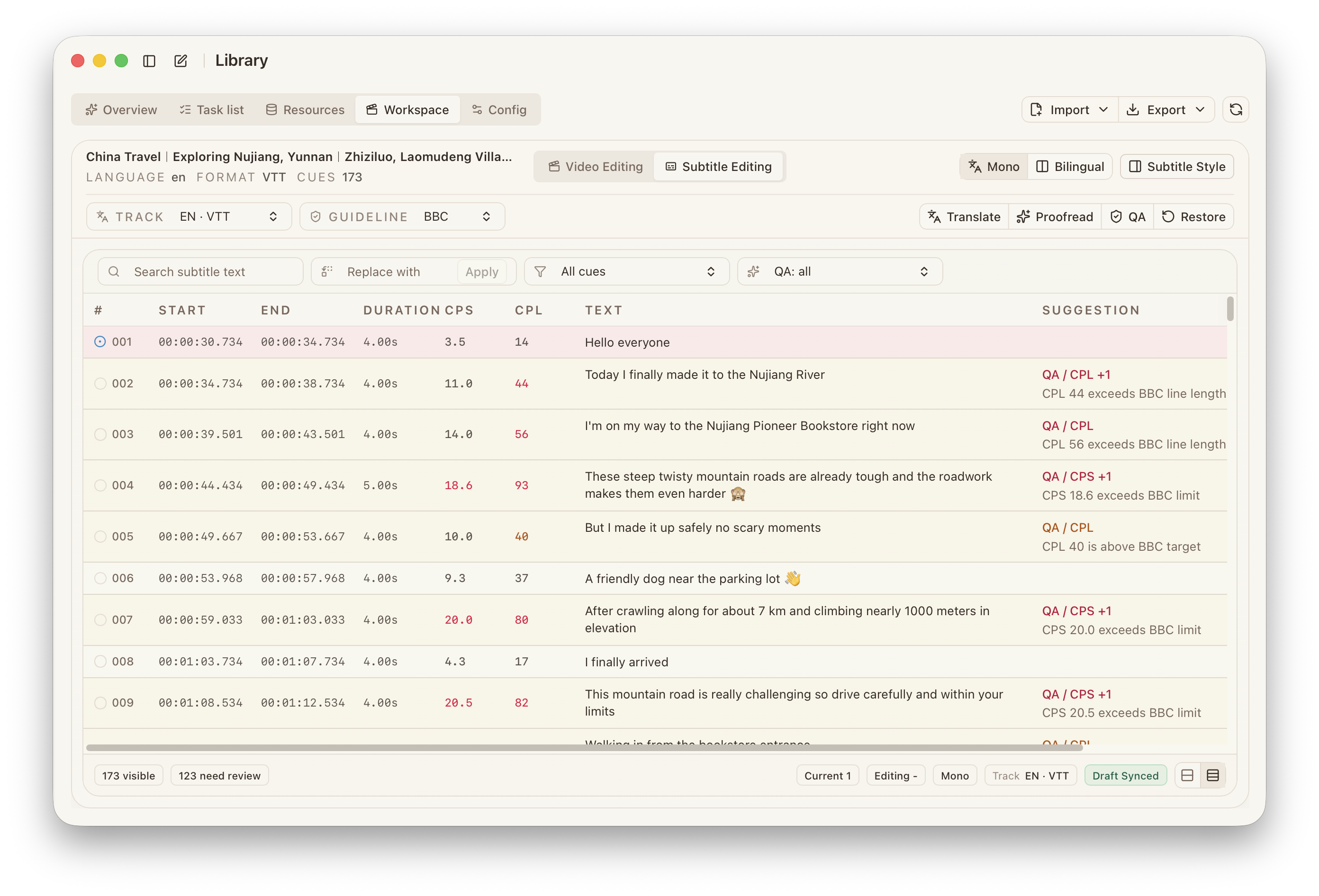
Common inputs include:
- a subtitle track that came with a download
- a subtitle file imported from outside
- a project already stored in the workspace
Prerequisites
- The current resource already exists in the
Resource Libraryand can be opened in theWorkspace. - If onboarding is not complete yet, first finish the
Welcomesetup described in Install, First Launch & Updates.
Features
Workflow
- Open the target library and enter the
Workspace. - Confirm the current video version, subtitle track, display mode, and style choice first.
- If the subtitle comes from an external file, use
Import Subtitleto finish normalization and import. - The workspace provides
Proofread,Translate,QA, andRestore. - Choose the action you need, complete the related settings, and start it.
- After the job is queued, return to the workspace for manual review, then export subtitles or continue into video export.
Entry Points
Workspace: suitable when you want to confirm subtitle tracks, styles, display modes, and results while looking at the material.Chat, Telegram, and scheduled tasks: suitable when you want to describe the goal directly and let the assistant createProofread,Translate, andQAjobs.
Subtitle jobs started by the assistant return to the library task list. After they finish, go back to the workspace for manual review, comparison, and export.
Restore remains a workspace action used to reload the original subtitle track.
Proofread
Proofread is for refining subtitles within the current language. It is commonly used for machine-translated drafts, human first drafts, or subtitles that are already close to delivery but still need consistent cleanup.
The current proofread flow supports three check types:
Spelling: fixes obvious wording mistakes.Punctuation: normalizes punctuation usage.Terminology: keeps names and terms consistent across the subtitle track.
By default, Spelling and Punctuation are enabled, while Terminology starts disabled.
If the subtitle is already mostly usable, it is common to begin with spelling and punctuation. Only when the project depends on fixed terms, character names, or product names is it worth turning on Terminology and pairing it with a glossary.
Proofread can also use:
GlossaryPrompt presetsInline prompt
Translate
Translate continues from the current subtitle track and produces another language version. A target language is required before the job starts.
Translation can use these settings:
Target languageGlossaryReference trackPrompt presetsInline prompt
In this flow:
Glossarylocks terms, brand names, fixed phrasing, and translation rules.Reference trackprovides extra terminology or style reference.Prompt presetsandInline promptadd tone, style, and task-specific instructions.
QA
QA checks the current subtitle for timing, text, and layout issues, and controls which warnings should be emphasized inside the workspace.
Inside the current workspace, QA should usually focus on:
timing: whether timing overlaps, drift, or unnatural pauses existcps: whether reading speed is too highcpl: whether single lines are too long for deliverylayout: whether line breaks and on-screen layout feel naturaltext: whether wording, completeness, tone, and punctuation remain consistent
QA also lets you switch the active validation guideline and turn realtime checks on or off.
Restore
Restore reloads the current subtitle lane from the original subtitle source.
After restore:
- the current draft edits for that subtitle lane are removed
- the workspace reloads the original subtitle content
Use Restore when you need to return to the original subtitle state. Confirm first that the current draft no longer needs to be kept.
Configuration
Assistant Entry
If you want to start subtitle jobs through chat, Telegram, or scheduled tasks, the current assistant should have:
Library queryLibrary jobs
The capabilities under library Config that are directly related to subtitle proofreading and translation include:
Language settings
DreamCreator already includes many widely used languages, so most translation jobs can start by choosing the target language directly.
- Built-in languages can be used directly.
- Custom languages let you add language codes, labels, and aliases that the default list does not cover.
- If a project needs fixed language naming or aliases, you can standardize them here.
Glossaries
Glossaries store reusable terminology mappings and fixed phrasing rules. Each glossary can define:
Category:All,Translate, orProofreadSource languageTarget language- multiple term entries, each with
Source,Target, andNote / usage hint
The usual usage is:
- In
Translate, choose glossaries that match the current language pair and task scope to lock brand names, character names, program titles, and fixed expressions. - In
Proofread, choose glossaries when the current subtitle already contains fixed naming or domain-specific terminology that must stay consistent.
Prompt presets
Prompt presets store reusable tone, style, and extra instructions. Each prompt preset can define:
Category:All,Translate,Proofread, orGlossaryDescriptionPrompt body
The usual usage is:
- In
Translate, use prompt presets to constrain tone, style, literalness, and product-name handling. - In
Proofread, use prompt presets to constrain speaker tone, preserved pauses, punctuation style, and similar editorial choices. - If an
Inline promptwritten for the current job will be reused later, it can be saved directly from the workspace as a prompt preset for future jobs.
These configurations remain in the current library and can be reused in later jobs.