
Mobile Channel Access
Connect Telegram to DreamCreator so the same assistant can keep working away from the desktop.
Introduction
If you need to keep checking tasks, continuing conversations, and receiving reminders after leaving the desktop, you can use mobile channel access. The currently available mobile channel in DreamCreator is Telegram.
Besides checking reminders and following up conversations, you can also start many library jobs directly through Telegram.
Prerequisites
- the app is currently in
Full Mode - if onboarding is not complete yet, first finish the
Welcomesetup described in Install, First Launch & Updates - you already have a valid
Telegram Bot Token - you already know which accounts and groups should be allowed to reach this assistant
Features
Workflow
- Open
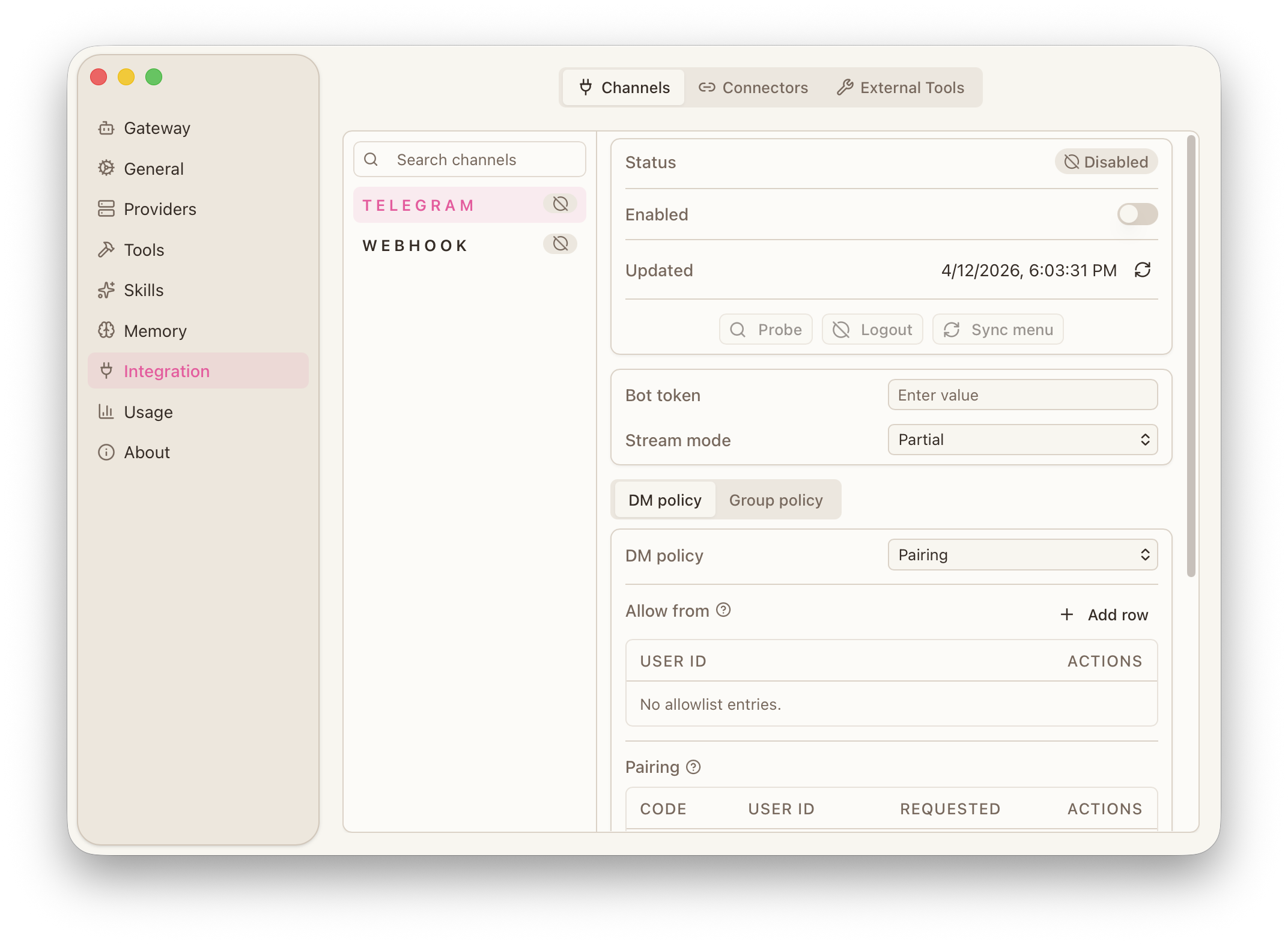
Preferences -> Integration -> Channels. - Select
Telegram, enter theBot Token, and enable the channel. - Configure the private-chat policy, group policy, allowed senders, allowed groups, and group sender overrides as needed.
- If you only want trusted accounts or groups to use it, lock those rules down before wider use.
- Run
Probefirst, then handle pairing and menu sync if needed.
Mobile Work
- viewing result or failure notifications
- continuing the current conversation with follow-up questions and extra requirements
- starting download, transcode, subtitle translation, proofreading, and QA jobs directly
Starting Jobs from Telegram
The same assistant used on the desktop can continue handling library jobs in Telegram.
- You can describe the target download, transcode, subtitle translation, proofreading, or QA task directly, and the assistant can create the related job.
- After creation, the job returns to the library task list, and the Telegram conversation can continue checking its status.
- If the next step needs deeper workspace preview, subtitle restore, manual review, or export, continue that part on the desktop.
Desktop Work
Mobile channels can continue many library jobs.
Workspace preview, subtitle restore, subtitle export, and more detailed style checks are still better handled on the desktop.
Configuration
Telegram Connection
The Telegram setup mainly includes Bot Token, channel enablement, Probe, pairing, and menu sync.
Bot Tokenis used to establish the current channel connection.Probeis used to confirm that the current channel setup is available.- Pairing and menu sync prepare the channel for follow-up interaction.
Assistant and Tools
If you want Telegram to continue creating library jobs, the current assistant should have:
Library queryLibrary jobs
If the private-chat policy, group policy, or group-level overrides restrict tool scope, these two tools need to remain available there as well.
Access Control
Access control is mainly handled through these settings:
-
private-chat policy
-
group policy
-
allowed senders
-
allowed groups
-
group sender overrides
-
only expose the channel to trusted accounts
-
keep group access and command scope narrow
-
preserve an in-app fallback for important notifications
-
disable channels you do not actively use