
Resource Library
Understand how the Resource Library keeps download, import, subtitle work, transcoding, and export in one media workflow.
Introduction
The Resource Library is used to manage media work in DreamCreator. Whether you create a new download, import a video, import subtitles, continue translation, or prepare a final export, the related jobs, files, records, and workspace state are stored here.
These jobs can be created directly from the desktop interface, or started by the assistant in chat, Telegram, and scheduled tasks, then tracked together in the same library surface.
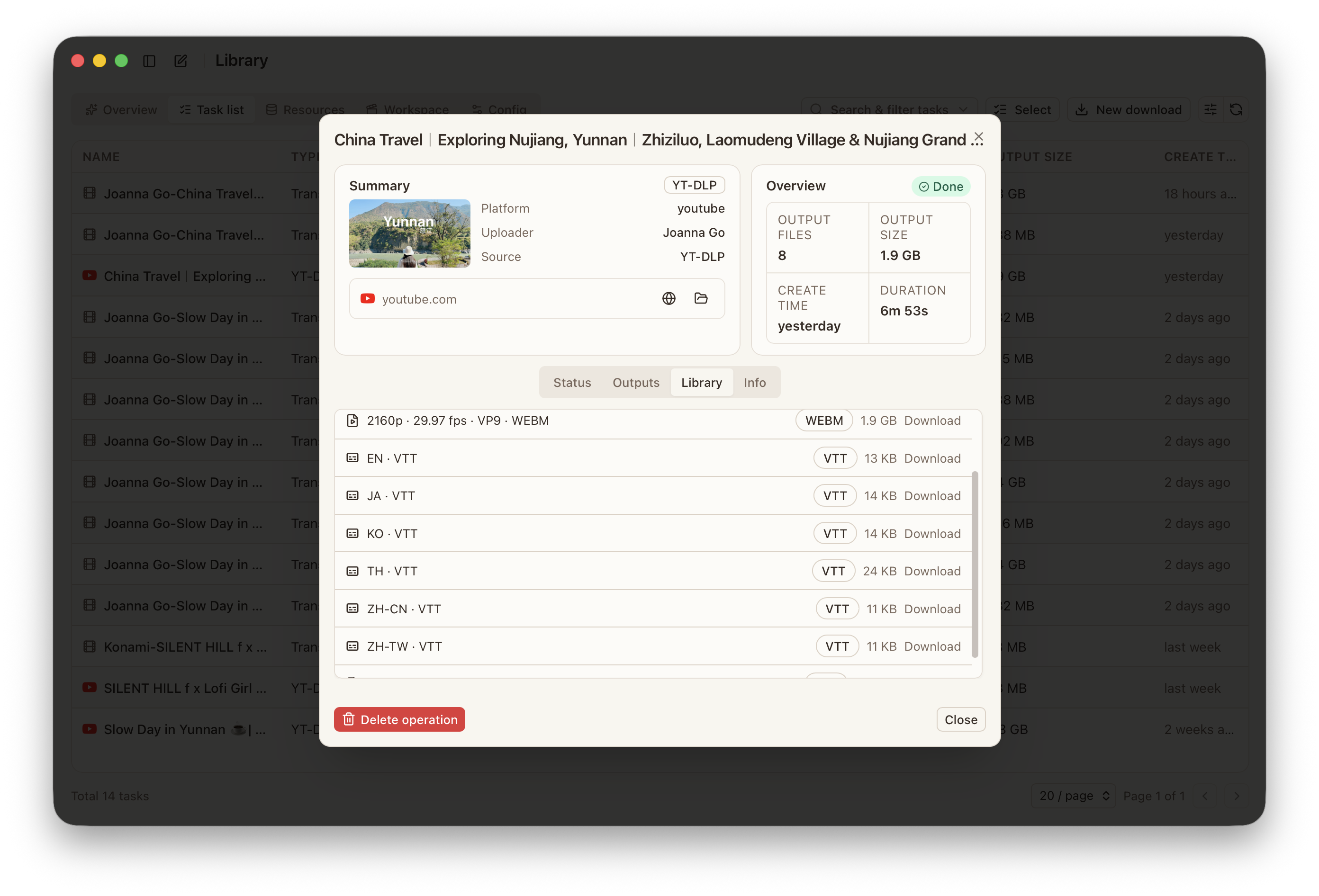
Pages
Overview: check library counts, job trends, recent records, and overall state.Tasks: inspect asynchronous download, subtitle, and transcode jobs started from the interface, chat, Telegram, or scheduled tasks, including outputs, errors, and retry points.Resources: inspect libraries, files, records, and recycle-bin content.Workspace: continue with video preview, subtitle editing, validation, translation, proofreading, and export for the current library.Config: manage task runtime, languages, glossaries, prompts, subtitle styles, fonts, subtitle export presets, video export presets, and remote sources.
The Resource Library receives both direct desktop actions and asynchronous jobs created by the assistant through Library query and Library jobs.
Features
New Download: bring online video into the local library.New Transcode: create a new transcode job for existing media.Translate Subtitle: start a subtitle translation flow for the current resource.Import Video: bring an existing local video into DreamCreator.Import Subtitle: bring an external subtitle file into the current library and continue in the workspace.
When the current assistant has Library query and Library jobs enabled, it can also create download, transcode, subtitle translation, proofreading, and QA jobs from chat, Telegram, and scheduled tasks. After creation, those jobs appear in the library task list, where their state, outputs, and errors are tracked.
Workspace
The Workspace only shows the video and subtitle assets that belong to the currently opened library. From there, you can continue with:
- choosing the current video version and subtitle track
- switching between
MonoandBilingualdisplay - running
Translate,Proofread,Validate, andRestore - continuing with
Export VideoorExport Subtitle - applying subtitle styles, reference tracks, glossaries, and prompt presets
Workflow
The Resource Library covers the full media flow from download or import, to subtitle handling, to transcoding and export:
- bring media in through download or import
- continue subtitle work inside the current library
- finish with transcoding, subtitle burn-in, and export
Whether the entry point is the desktop, chat, Telegram, or a scheduled task, job history, output files, subtitle drafts, and final exports stay in one place.
Further Reading
- If you want to download material first, read Video Download.
- If you want to continue subtitle work, read Subtitle Proofreading & Translation.
- If you want to prepare the final delivery file, read Video Transcoding & Subtitle Burn-In.