
Video Transcoding & Subtitle Burn-In
Finish video transcoding, subtitle handling, and final export inside the workspace.
Introduction
After download and subtitle work are finished, many projects still require delivery-stage processing such as transcoding, packaging, embedding subtitles, or burning subtitles into the frame. This step can also be completed inside DreamCreator.
Transcode jobs can be created from the workspace and Resource Library interface, or started by the assistant in chat, Telegram, and scheduled tasks, then tracked together in the Resource Library.
Prerequisites
- a valid source video
- a subtitle track or file that is already ready for delivery
- if onboarding is not complete yet, first finish the
Welcomesetup described in Install, First Launch & Updates
Features
At this stage, DreamCreator mainly provides three functions:
Entry Points
Workspace: suitable when you want to confirm subtitle tracks, display modes, styles, and final output while previewing the material.Resource Library, chat, Telegram, and scheduled tasks: suitable when you want to create a new transcode job directly and let the Resource Library complete it asynchronously.
Transcode jobs started by the assistant return to the library task list, where their state, outputs, and errors are checked.
Export Video and Export Subtitle remain the main delivery actions inside the workspace.
Export video
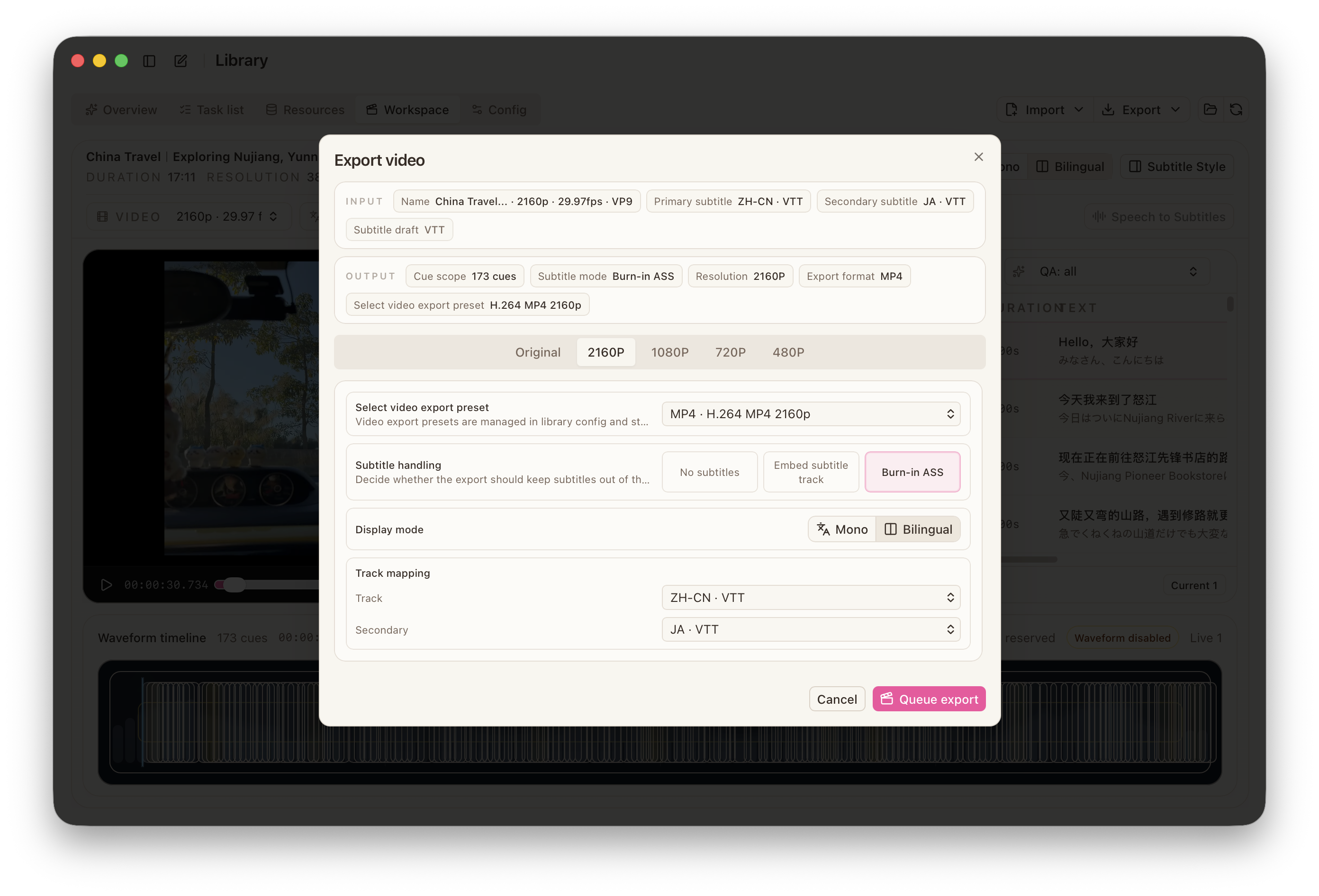
Export Video is used to generate the final video file. Common cases include standardizing the container, reducing size, keeping switchable subtitle tracks, or burning subtitles directly into the picture.
Inside Export Video, you can continue with:
Video export presetSubtitle handlingDisplay modePrimary / secondary subtitle track
In this flow:
No Subtitle: exports only the video.Embedded Subtitle Track: writes subtitles as a soft subtitle track inside the video.Burn-In ASS: renders subtitles directly into the picture based on the current workspace subtitle view and the selected subtitle style.
When Burn-In ASS is selected, the result is directly affected by Subtitle Styles, Font Management, Display Mode, and primary or secondary subtitle track mapping.
When Embedded Subtitle Track is selected, the available subtitle route follows the current container capability. Some containers only support text subtitle routes, so export follows the supported format automatically.
Export subtitle
Export Subtitle is used to generate a subtitle delivery file without re-exporting the video.
Inside Export Subtitle, you can continue with:
Export formatSubtitle export preset- the current subtitle track
- style or format-specific parameters
If the target format supports subtitle styling, export writes font, size, alignment, and related style data. If the target format only supports plain text subtitles, the result keeps only text and timing.
New transcode
New Transcode is for launching a new transcode job directly from existing media at the library level.
Use it in these cases:
- you only need transcoding and do not need more subtitle editing
- you need repeated outputs in different formats from existing resources
- you want transcoding to stay as a separate tracked job in the library task list
New Transcode also depends on Video export presets, so it uses the same export capability as Export Video in the workspace.
If the current assistant already has the related tools enabled, the same kind of transcode job can also be created directly from chat, Telegram, and scheduled tasks.
Outputs
Whether you export video, export subtitles, or create a new transcode job, the result returns to the current library’s jobs, files, and records so it can be managed, reviewed, and reused later.
Configuration
Assistant Entry
If you want to start transcoding through chat, Telegram, or scheduled tasks, the current assistant should have:
Library queryLibrary jobs
The capabilities in library Config that directly belong to this stage are:
Subtitle styles
Subtitle Styles manage mono and bilingual subtitle style presets.
They affect:
- subtitle preview in the workspace
- styled formats in
Export Subtitle Burn-In ASSinExport Video
If subtitle visuals need to stay stable across projects, keep the commonly used styles as reusable presets.
Font management
Font Management tracks the fonts referenced by subtitle styles and repairs missing fonts.
It affects:
- how closely workspace preview matches final output
- rendering consistency in
Burn-In ASS - styled subtitle exports
If a style references fonts that are missing on the current machine, fix them here so preview and export stay aligned.
Subtitle export presets
Subtitle export presets manage subtitle delivery settings in a reusable way.
They mainly serve Export Subtitle and can store:
- default export format
- linked subtitle style
- format-specific output settings
If you export the same kind of subtitle file repeatedly, keep that setup as a subtitle export preset.
Video export presets
Video export presets manage reusable video and audio output settings.
They mainly serve:
Export Videoin the workspaceNew Transcodeat the library level
They affect container choice, resolution, and other transcode settings used during export.
If your team delivers video in fixed output specs, keep those common setups as video export presets.